🎵 FreeMium JayRain
The complete node setup guide. About 10 minutes, one time — then your server has music, free, forever.
💡 Why this works — the group-effort model
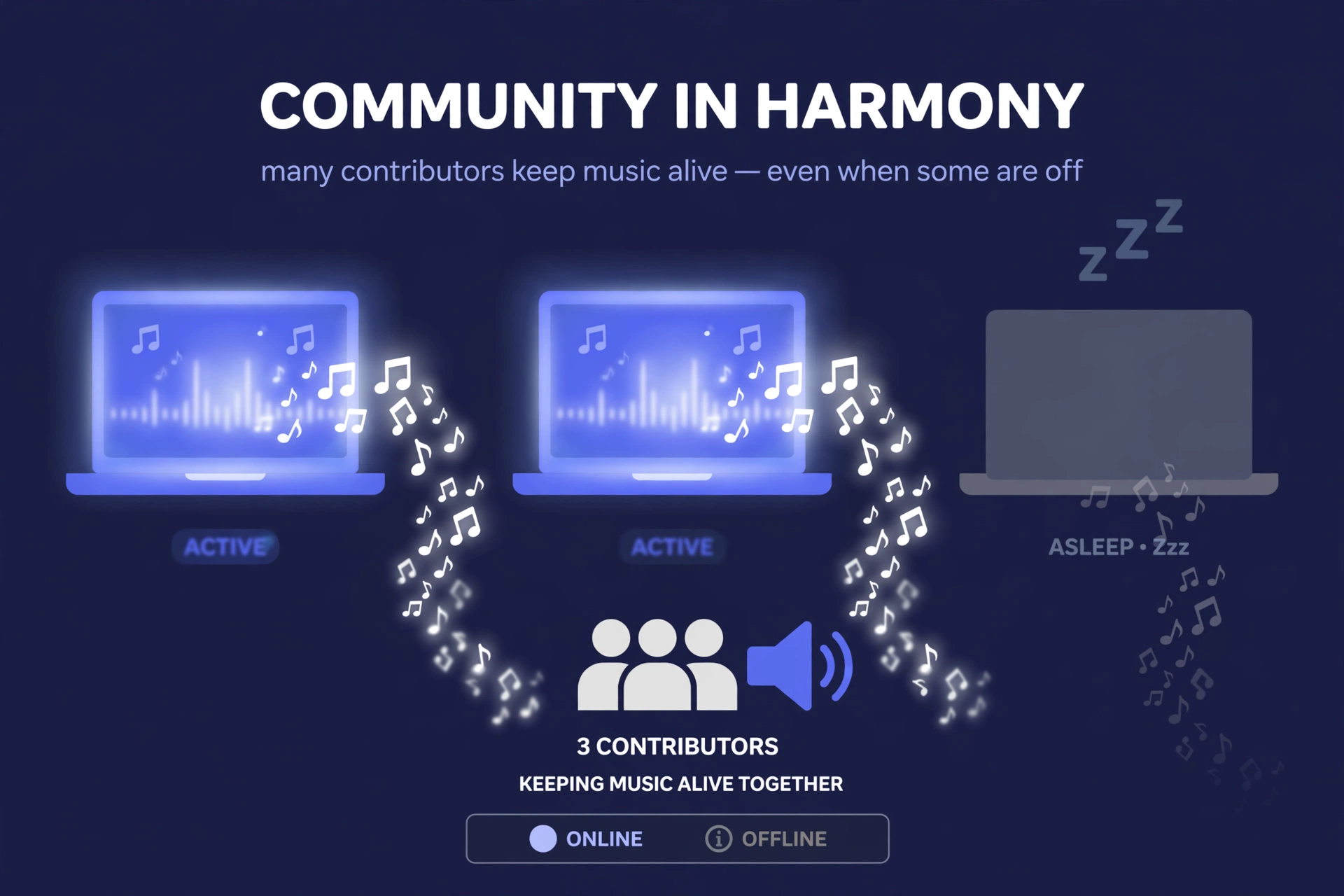
FreeMium JayRain runs on nodes shared by its community — the more members who link a node, the more reliable music is for everyone, especially newcomers.
- The bot app itself never hosts audio — which is why it's free forever. The bot that lives in your server only handles commands: reading
/play, managing the queue, joining voice channels. Downloading and streaming music costs real server money, and FreeMium JayRain simply doesn't do that part — so there's nothing to charge you for. The free tier is the only tier. - Each linked node is a member's PC doing the streaming work. A "node" is just a small audio-server program running on someone's own computer. When music plays, it streams from that person's PC into the voice channel.
- If several members link nodes, music keeps working even when some PCs are off. One person closes their laptop? Someone else's node picks up the slack. Linking your node isn't just unlocking music for yourself — it's contributing to the whole server, like everyone chipping in a little so nobody has to pay a lot.
- The share toggle (on by default) is what makes your node available to your servers. Flip it on and, while your PC is online, anyone in the servers you're in can play music through your node. More on that in step 9.
/play right away. This guide is for when you want to add your own PC to the pool.1 What "host your own node" actually means
When you type /play, the FreeMium JayRain bot only handles the command — figuring out which song you asked for, managing the queue, and joining the voice channel. The actual work of finding, downloading, and streaming the music is done by an audio server (we call it a node) running on your computer.
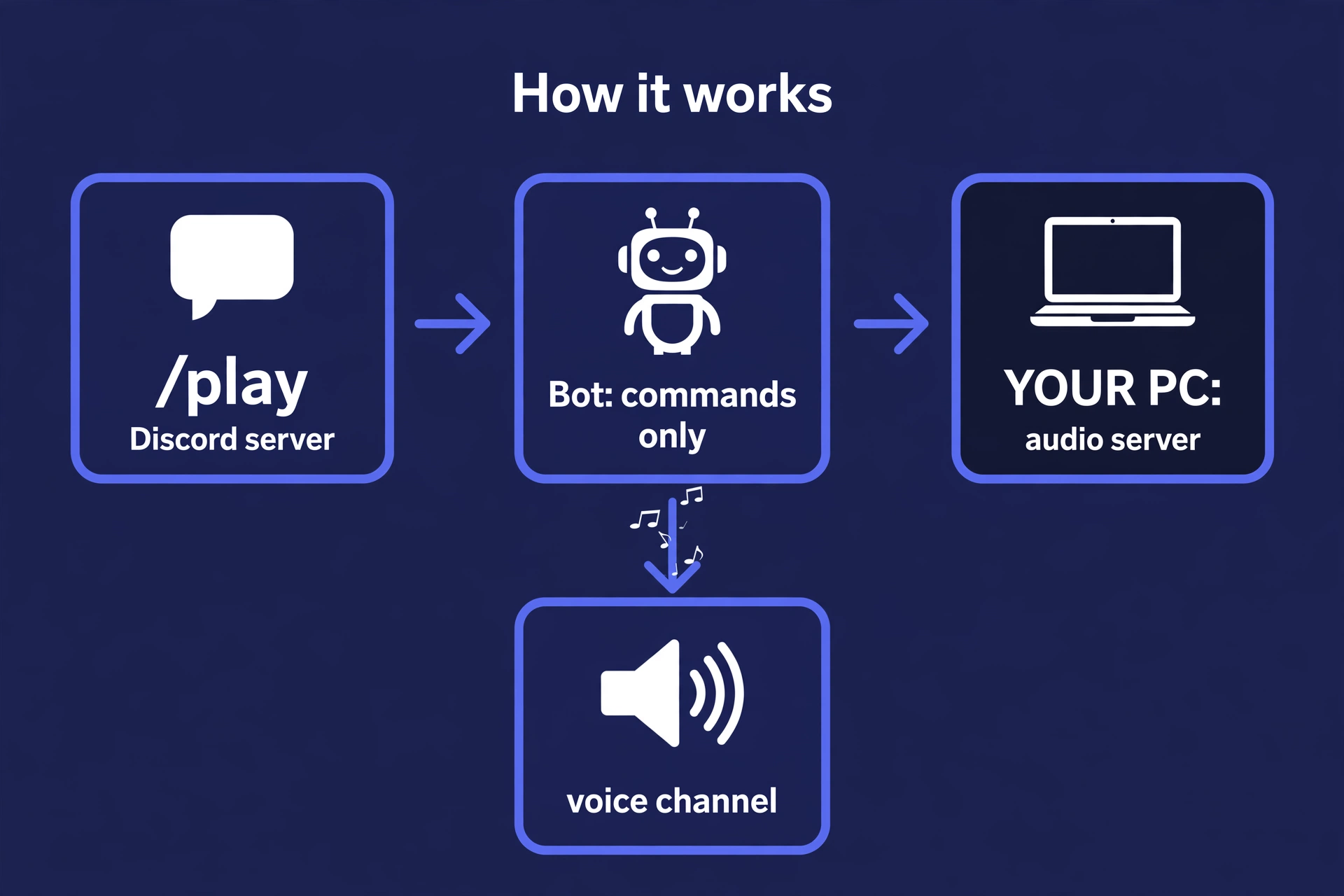
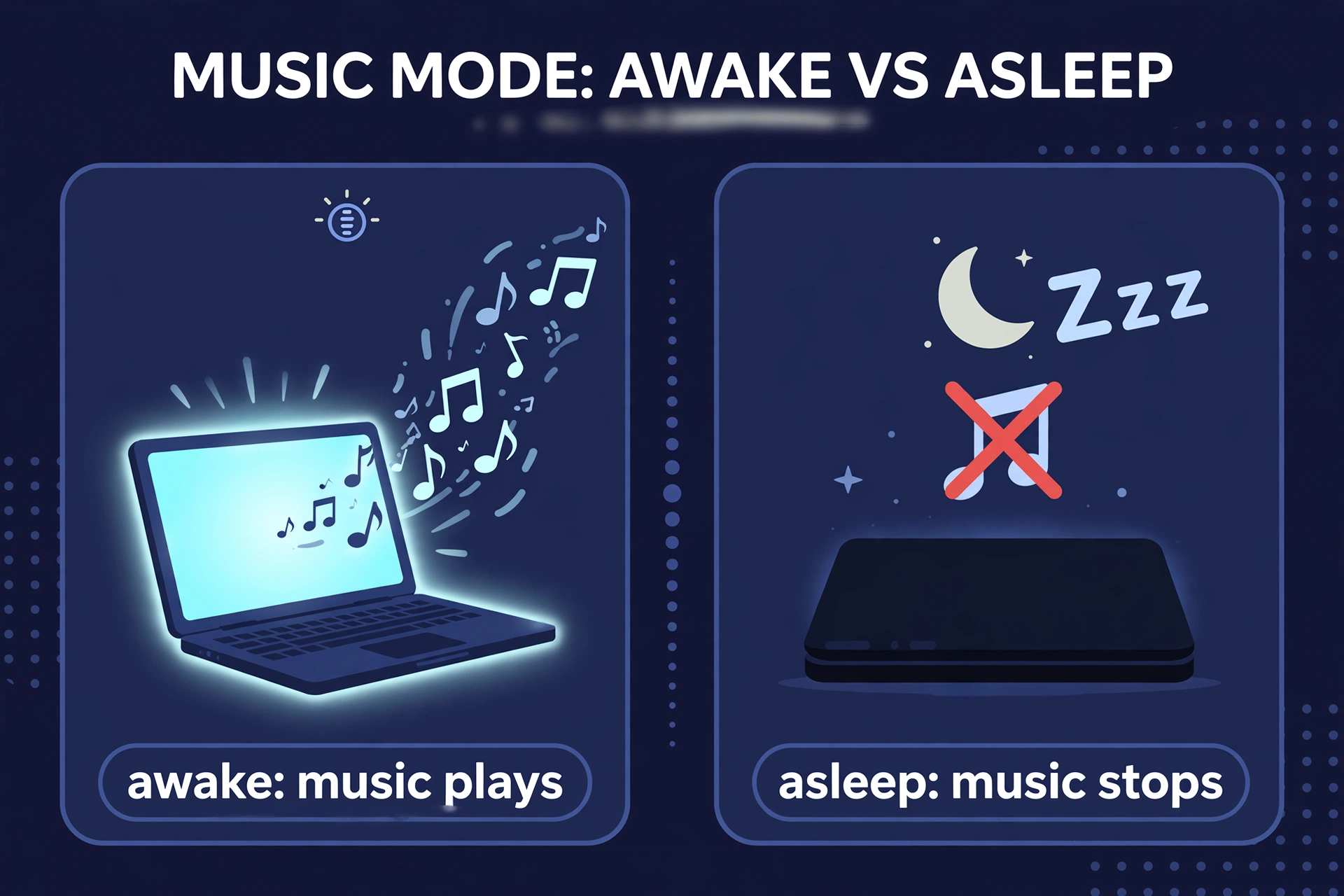
That means: when your computer is off or asleep, your node is unavailable and can't stream. Close the laptop, music stops. That's not a bug — it's the whole design. And it's exactly why it matters that other server members link their nodes too: the more nodes a server has, the more likely someone's PC is online to power the music at any given moment.
2 What you need to collect
Five things. None of them cost money:
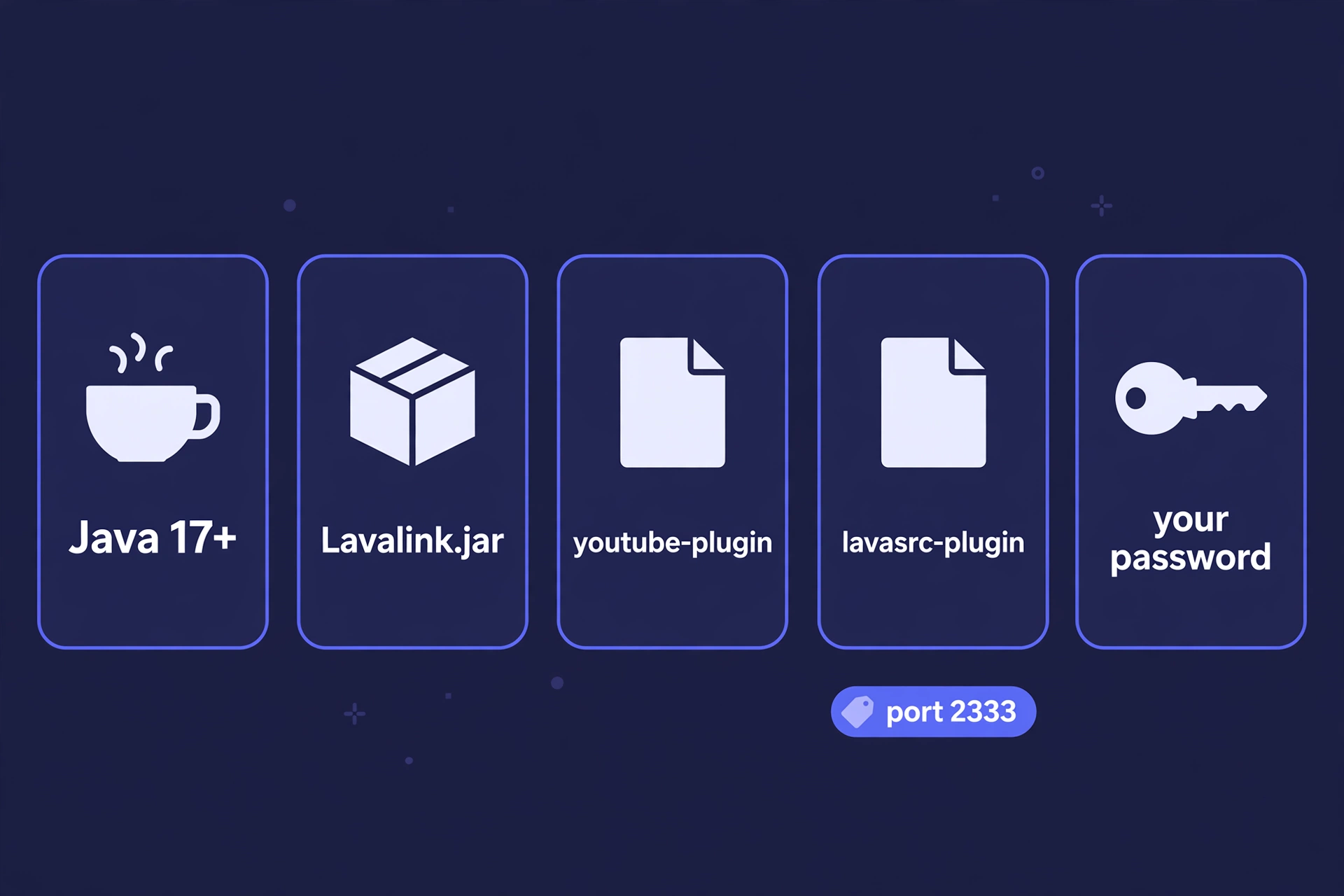
- Java 17 or newer — the free engine the audio server runs on. (Java is just a program other programs use to run — like how you need a video player to watch a video file.)
- The Lavalink v4 server file (
Lavalink.jar) — this is the audio server. One file, roughly 100 MB. - The YouTube plugin file (
youtube-plugin-….jar) — Lavalink v4 removed YouTube from its core, so this add-on puts it back. Without it, no YouTube. - The LavaSrc plugin file (
lavasrc-plugin-….jar) — this add-on unlocks Spotify, Apple Music, and Deezer links. - A password YOU choose — a secret word only you know. The bot uses it to prove it's really you connecting, so nobody else can hijack your node. Pick something long and random-ish, letters and numbers, no quotes inside.
- A port:
2333(the default) — think of a port as a door number. Your audio server listens at door 2333, and the bot knocks on that door. You almost certainly don't need to change this.
3 Downloading each piece
☕ Java 17+
Go to adoptium.net (the free, official source for Java) → Temurin releases → pick the installer for your system (Windows .msi, Mac .pkg, Linux). Run it and accept the defaults.
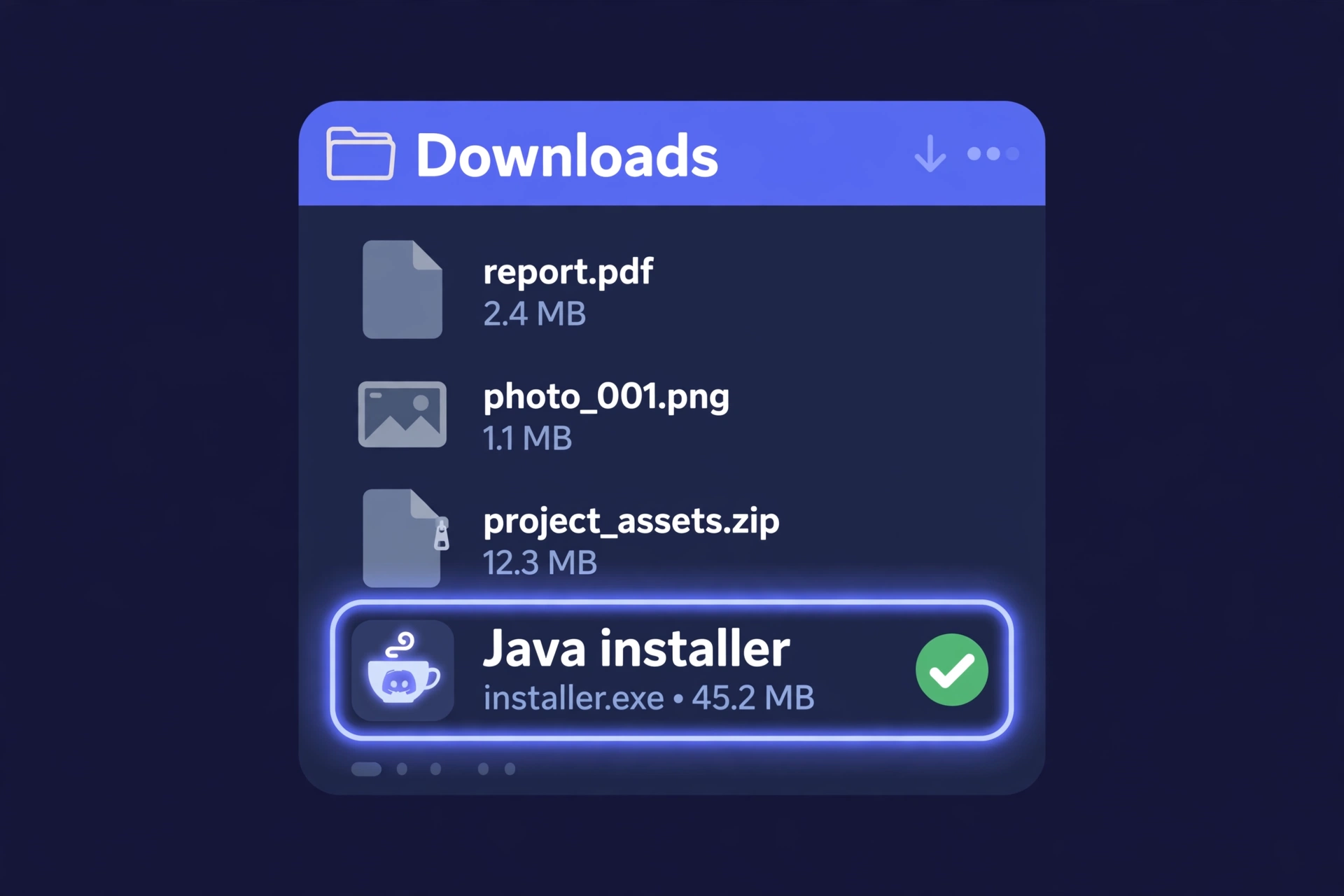
When it's done, it'll look like an ordinary installer file with a little coffee-cup icon sitting in your Downloads. To check it worked, open a terminal and run java -version — you should see version 17 or higher.
📦 Lavalink.jar
Go to github.com/lavalink-devs/Lavalink → Releases → open the newest v4.x release → under Assets, download the file named exactly Lavalink.jar.
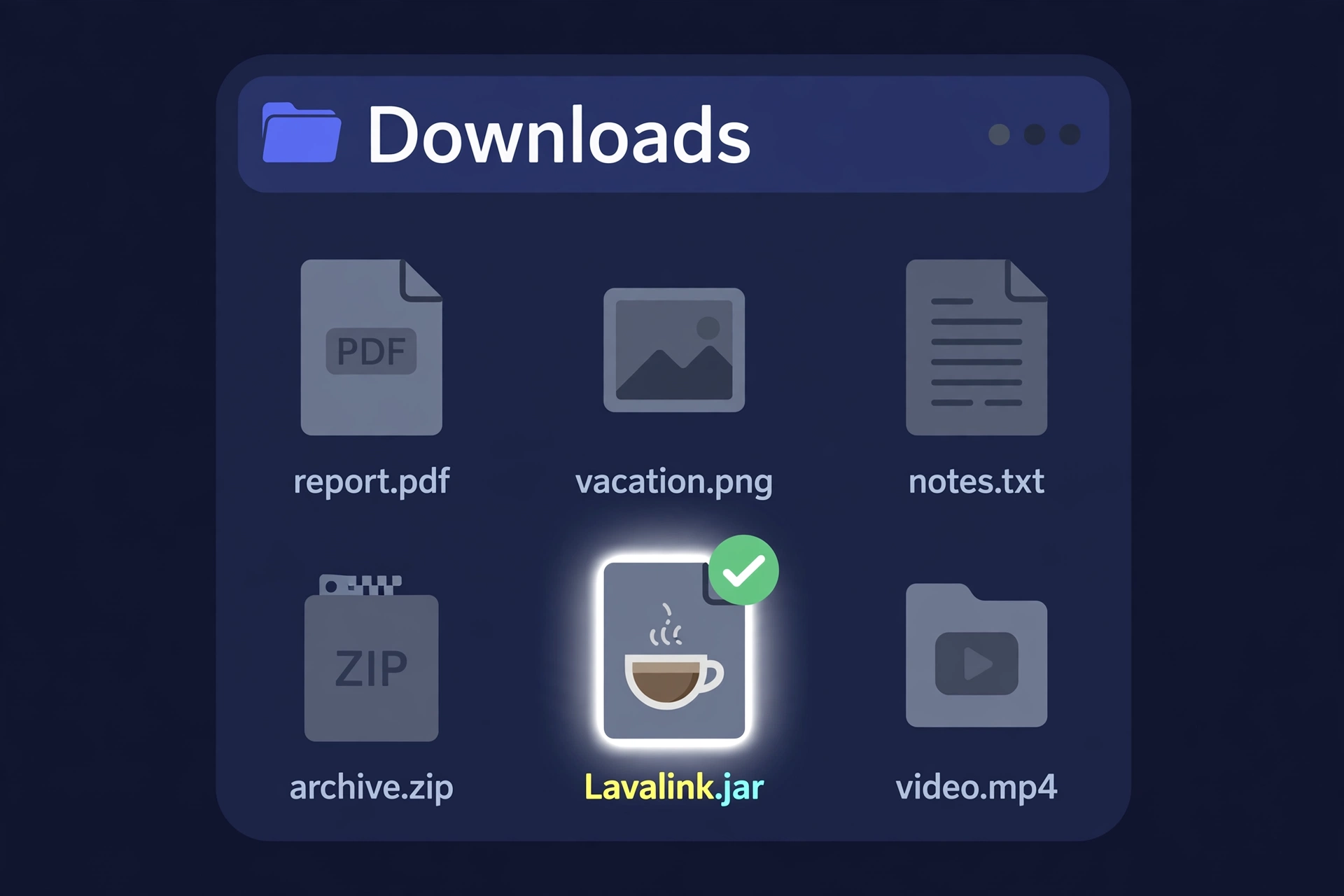
What to look for: a single .jar file, roughly 100 MB, named Lavalink.jar — nothing else from that page. If the name has extra words or a different extension, it's the wrong file.
🔌 The two plugin jars
YouTube plugin: go to github.com/lavalink-devs/youtube-source → Releases → download the newest youtube-plugin-….jar (the version number in the name will match the release — e.g. youtube-plugin-1.18.2.jar).
LavaSrc plugin: go to github.com/topi314/LavaSrc → Releases → download the newest lavasrc-plugin-….jar.
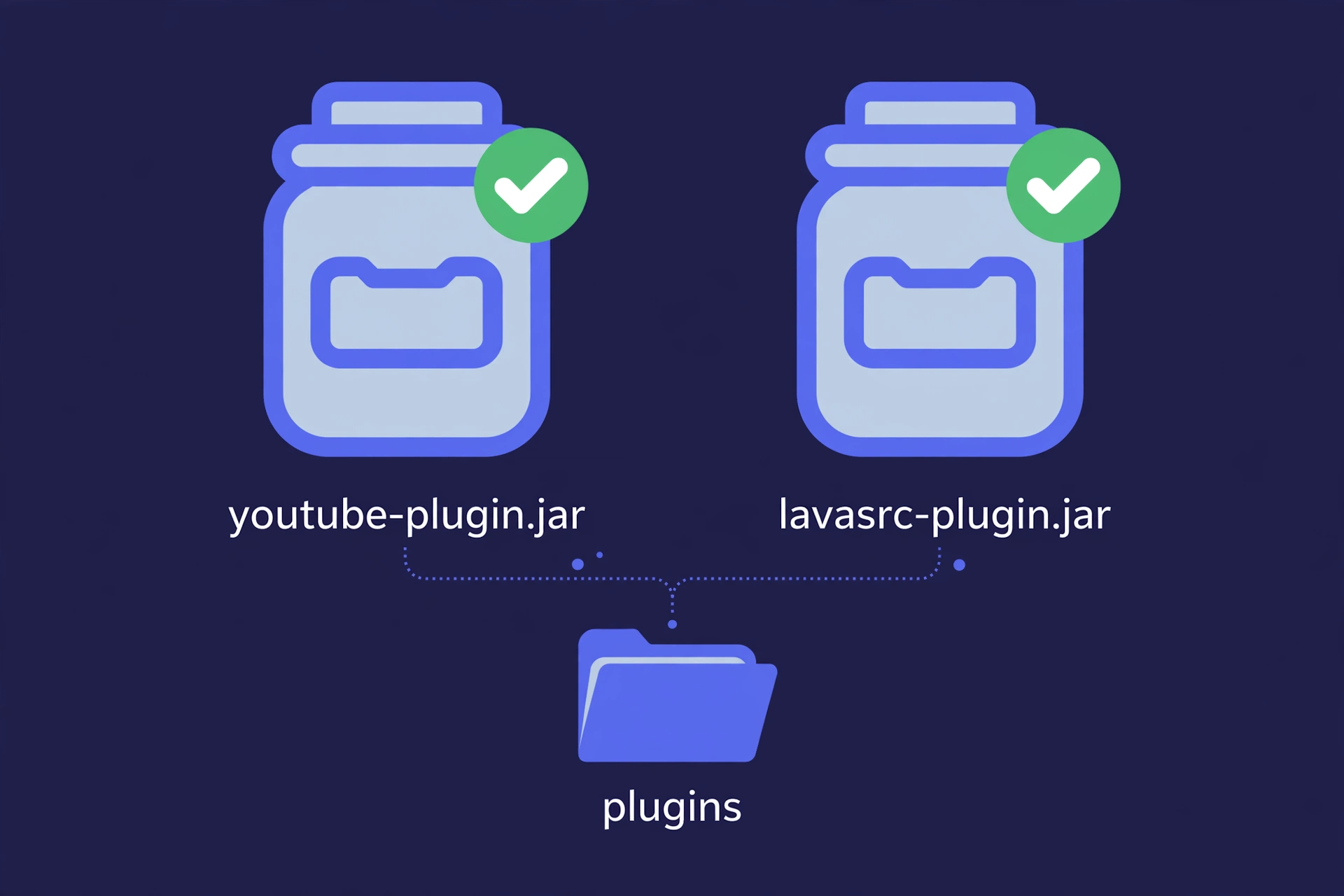
.jar whose name starts with youtube-plugin or lavasrc-plugin. Grab the latest release on each page — newer versions fix bugs and keep up with YouTube/Spotify changes.4 The config file (copy-paste)
In the folder where you put Lavalink.jar, create a plain text file named exactly application.yml and paste everything below into it. It's the settings file for your audio server.
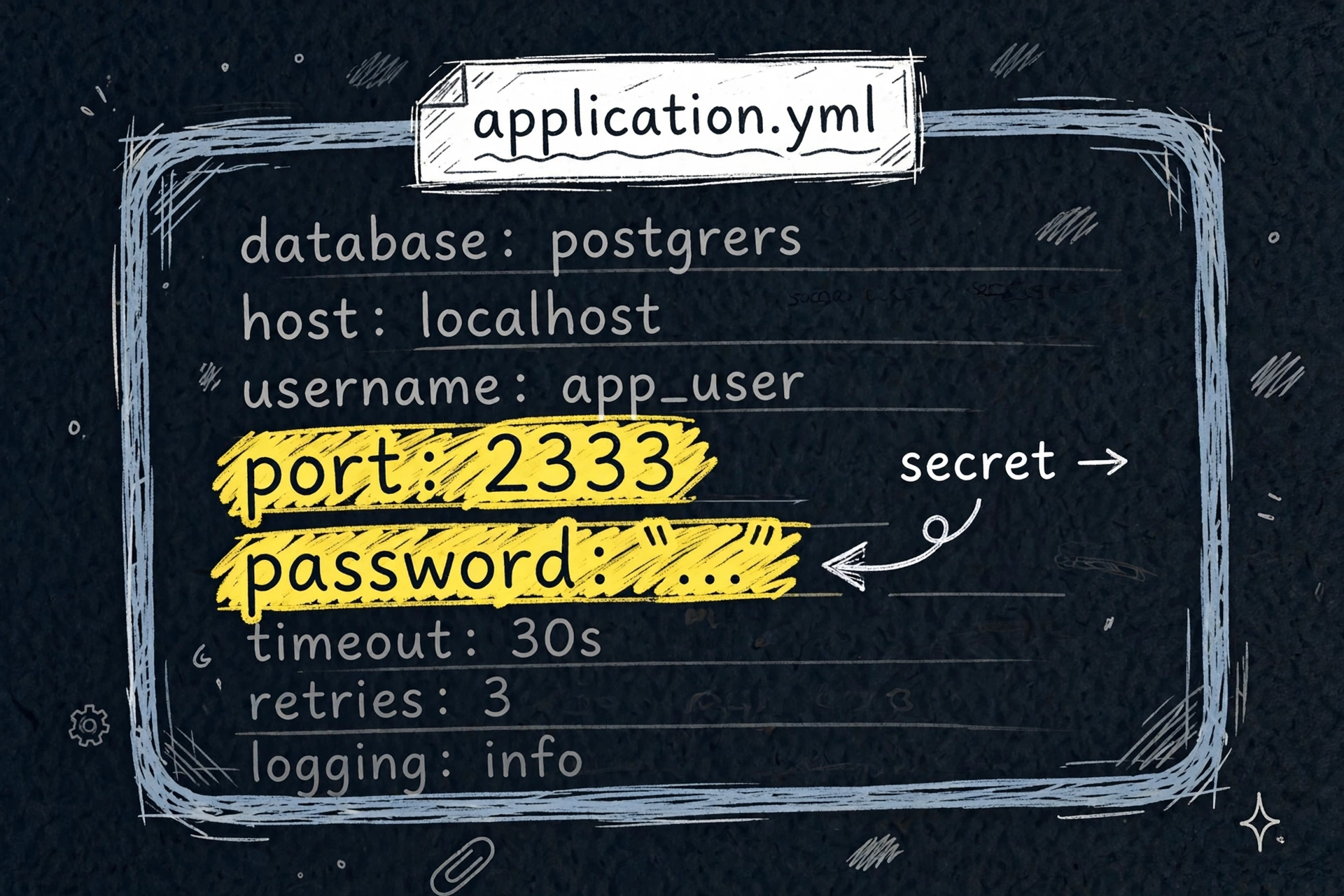
You only need to change TWO lines — they're highlighted below:
server:
port: 2333 # ← LINE 1: the door number. Leave it unless you know you need another.
address: 0.0.0.0
lavalink:
server:
password: "REPLACE-THIS-WITH-YOUR-OWN-PASSWORD" # ← LINE 2: YOUR secret. Keep the quotes!
sources:
soundcloud: true
http: true
bandcamp: true
twitch: true
vimeo: true
filters:
volume: true
bufferDurationMs: 400
playerUpdateInterval: 5
plugins:
youtube: # turns YouTube back on (Lavalink v4 needs this add-on)
enabled: true
allowSearch: true
allowDirectVideoIds: true
allowDirectPlaylistIds: true
lavasrc: # Spotify / Apple Music / Deezer support
providers:
- "ytsearch:\"%ISRC%\""
- "ytsearch:%QUERY%"
- "scsearch:%QUERY%"
sources:
spotify: true
applemusic: true
deezer: trueport: 2333— the door number your node listens on. You'll type this same number when linking the node later. Leave it at 2333 unless something else on your PC already uses it.password: "…"— replaceREPLACE-THIS-WITH-YOUR-OWN-PASSWORDwith the password you chose in step 2. Keep the quote marks around it.- Everything else — leave exactly as-is. The
plugins.youtubesection switches YouTube on; theplugins.lavasrcsection switches Spotify/Apple Music/Deezer on.
5 Where everything goes
Make one folder for all of it — for example C:\Lavalink on Windows or ~/lavalink on Mac/Linux. Inside it:
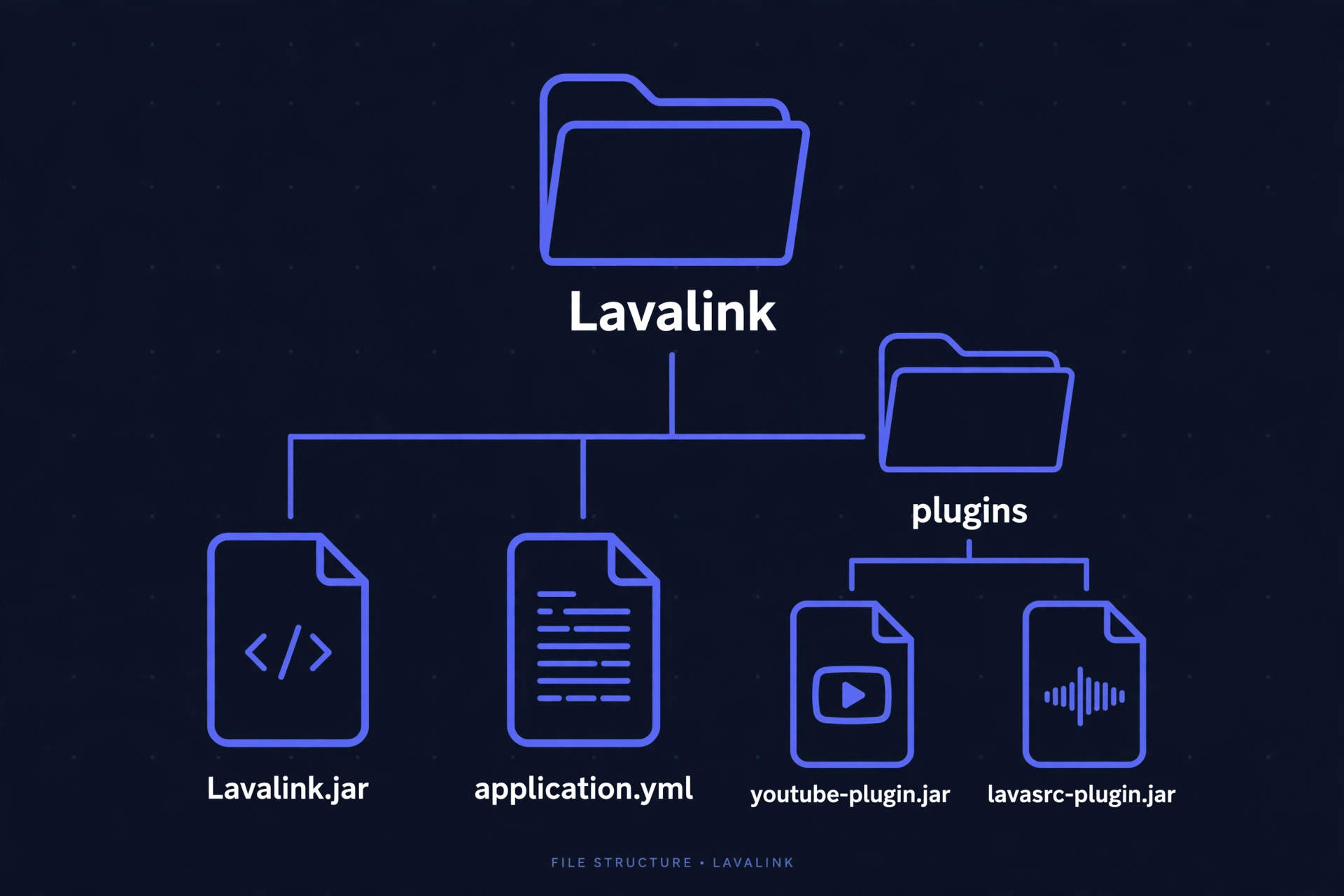
Lavalink.jar→ directly in the folderapplication.yml→ directly in the folder, next to the jar- Create a subfolder called
plugins→ drop both plugin jars inside it
.jar it finds in the plugins folder when it starts — no extra setup needed. If YouTube or Spotify ever stops working, the first thing to check is that both jars are still in that folder.6 Starting your node
Open a terminal in your Lavalink folder and run:
🪟 Windows
Open PowerShell (search it in the Start menu), then:
cd C:\Lavalink
java -jar Lavalink.jar
(Use your folder path if you picked a different one.)
🍎🐧 Mac / Linux
Open Terminal, then:
cd ~/lavalink
java -jar Lavalink.jar
(Use your folder path if you picked a different one.)
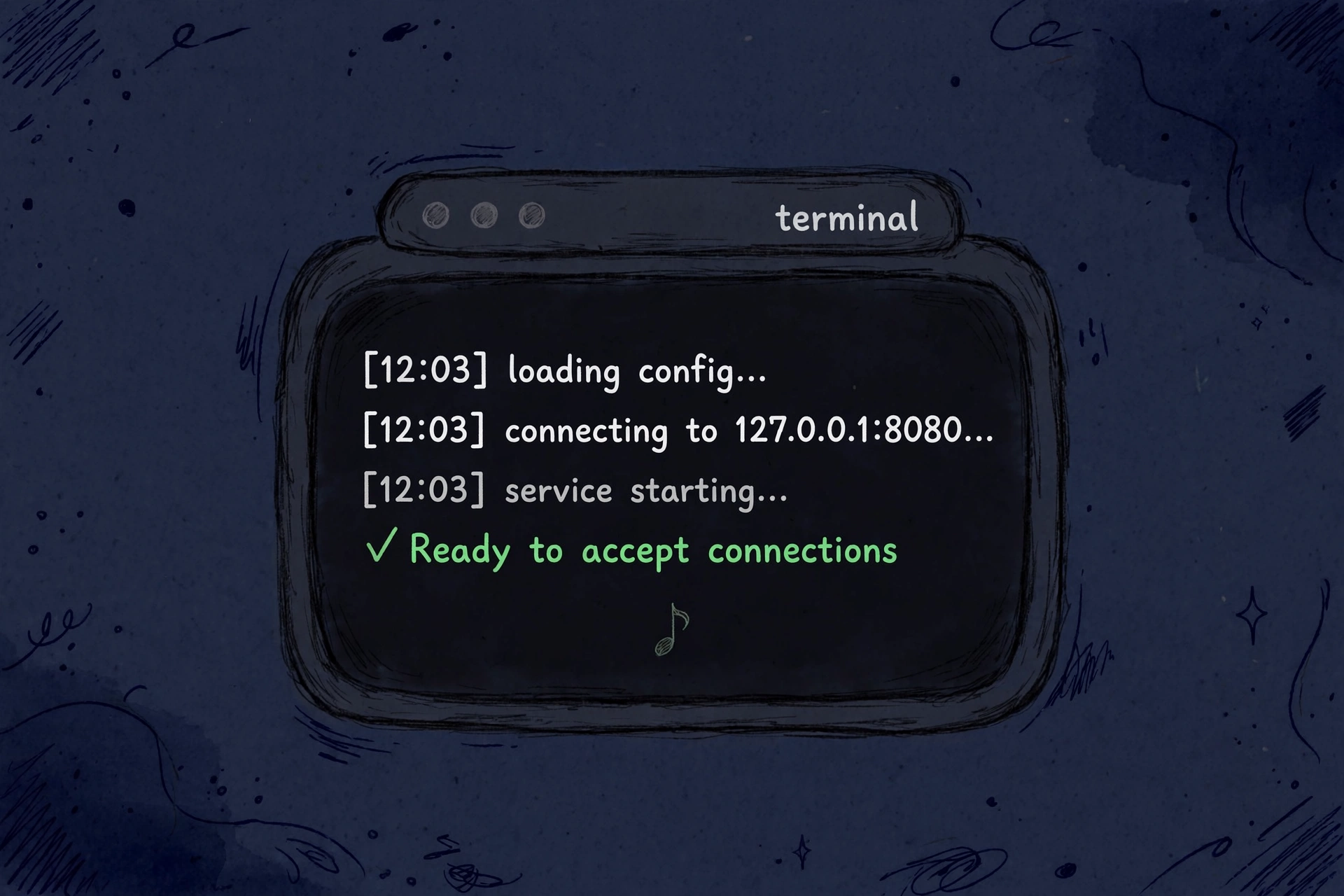
What success looks like: a bunch of log lines scroll by (the first run takes a little longer — it's setting things up), and near the end you'll see a line saying Lavalink is ready to accept connections. That's it — your node is live. 🎉
7 Keeping your PC awake
Here's the catch from step 1: if your computer falls asleep or hibernates, your node goes offline and music powered by it stops. Your PC doesn't need to be used — it just needs to stay awake.
In plain words, here's the setting to change (do it while plugged into power — you don't need to drain your battery for this):
- 🪟 Windows: Settings → System → Power & battery → under "Screen and sleep", set "Put my device to sleep after" to Never (at least for "when plugged in").
- 🍎 Mac: System Settings → Lock Screen (or Energy Saver on older Macs) → set the display/computer to not sleep while on the power adapter. Look for an option like "Prevent automatic sleeping when the display is off" and turn it on. (Apple renames these now and then — you're looking for anything that stops the Mac sleeping on power.)
- 🐧 Linux: Settings → Power → turn off Automatic Suspend (and set "Blank Screen" to Never if you like).
8 Linking your node — two ways
Your node is running — now tell the bot how to reach it. Pick whichever way you like; both ask for the same three things: Host, Port, Password.
Way A — in Discord with /mynode 📱
- Make sure your node is running (step 6) and your PC is awake (step 7).
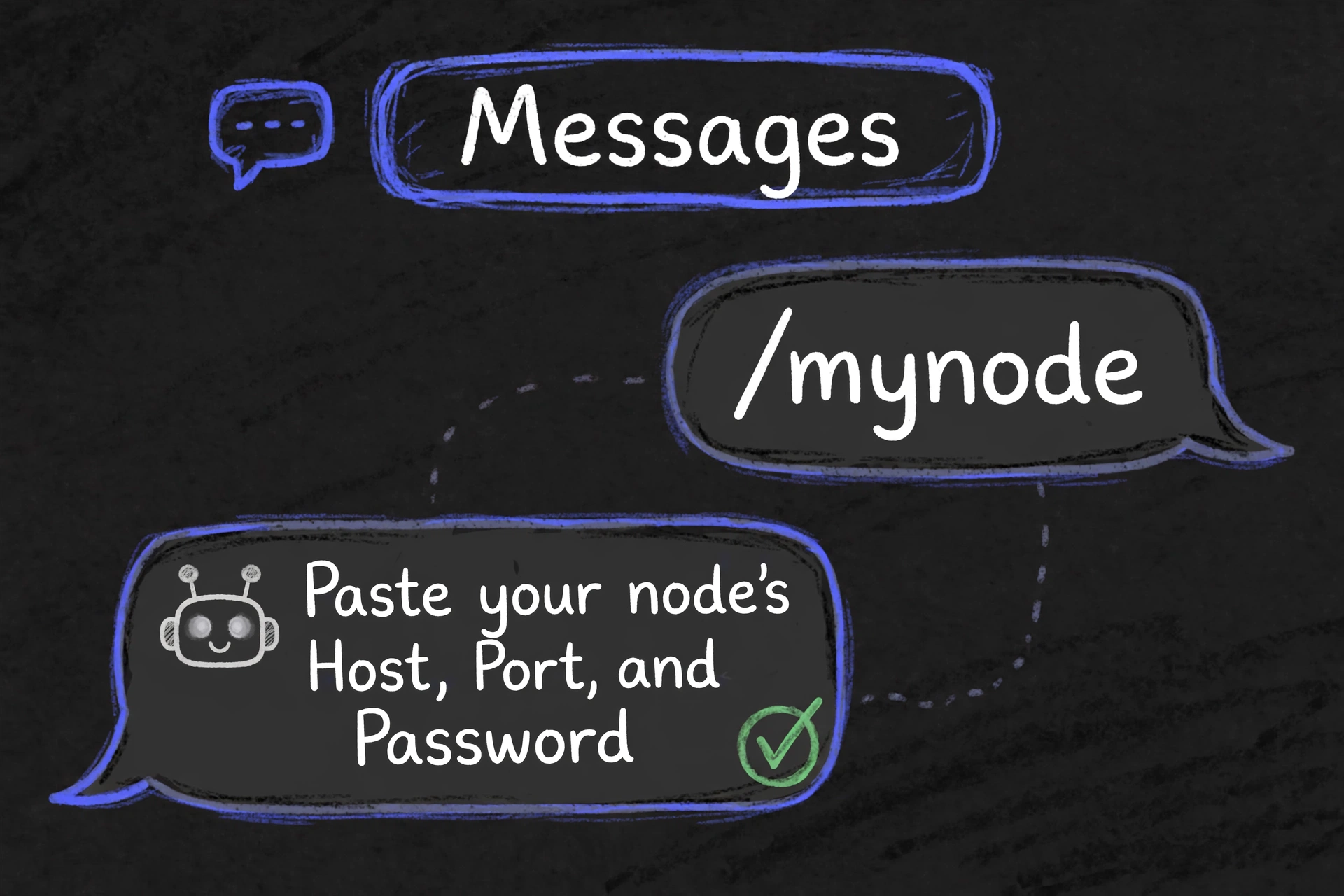
- In any server that has FreeMium JayRain, type
/mynodeand hit enter. - Fill in the popup:
- Host — how the bot reaches your PC over the internet (see below — it's not "localhost").
- Port —
2333(unless you changed it inapplication.yml). - Password — the one from your
application.yml.
- The bot tests the connection on the spot. Green checkmark = you're live. Your personal node now works in every server you're in that has the bot — no need to repeat this per server.
/setup does the same thing but links a node for the whole server instead of just you. Same three fields.Way B — on the dashboard 🌐
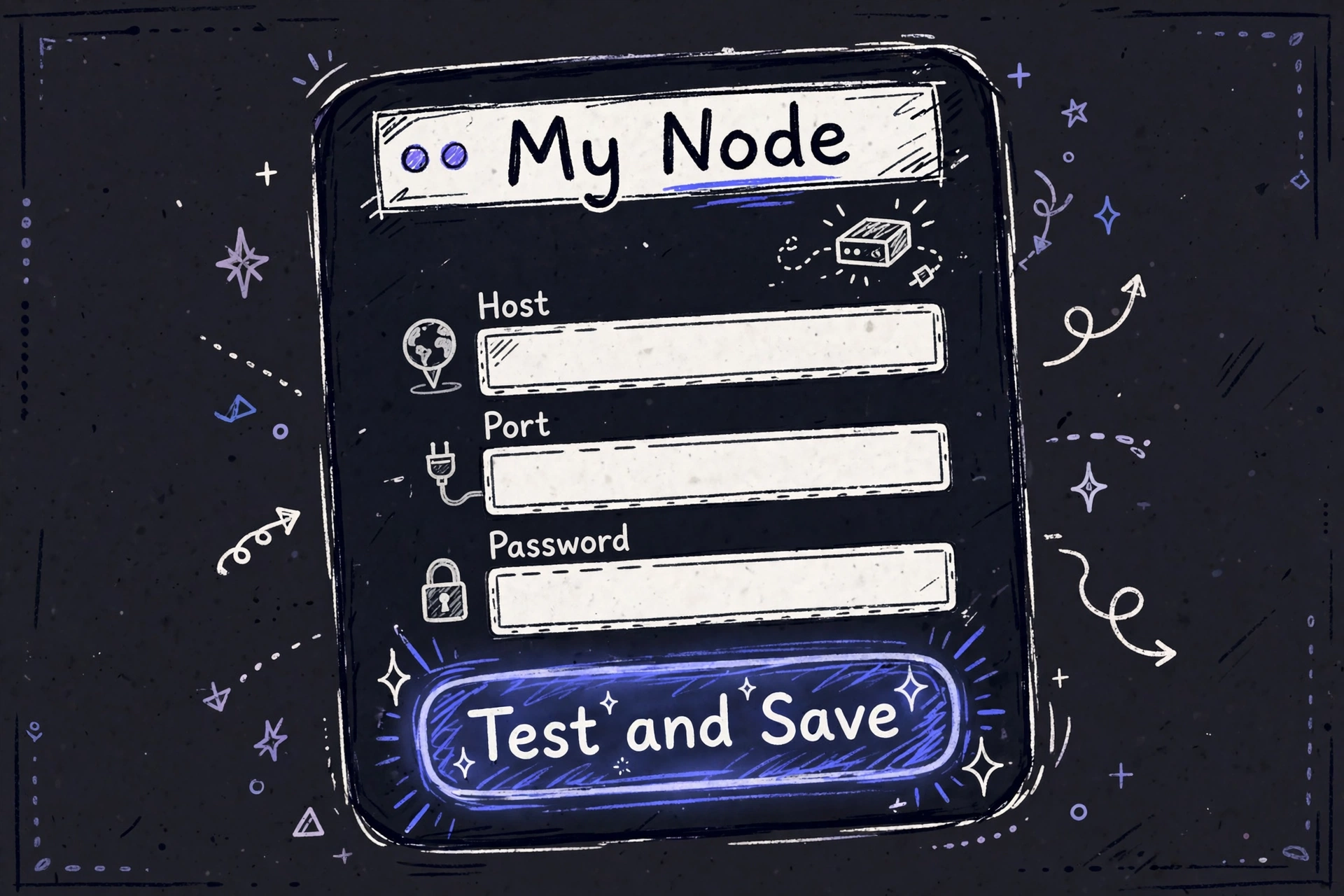
- Go to freemiumjayrain.rivaleclipse.dev/my-node and sign in with Discord.
- Open the My Node page.
- Fill in Host, Port (
2333), and Password — the same three values as Way A. - Hit Test & Save. It tests the connection live, just like
/mynodedoes. - Done — same result: your node is linked to your Discord account and works in every server you share with the bot.
🌍 "Wait — what do I put for Host?"
The bot lives on the internet, so localhost won't work — it needs your PC's public address. Two options:
- Option A — Port forwarding (set once, stays the same): in your router's settings, forward TCP port 2333 to your computer. Your Host is your public IP (find it by searching "what is my ip").
- Option B — Tunnel (easiest, no router changes): install
cloudflared, then runcloudflared tunnel --url http://localhost:2333in a second terminal next to Lavalink. It prints a public address likehttps://something.trycloudflare.com— paste it as your Host without thehttps://. Heads-up: free tunnel addresses change every time you restart it, so you'll need to re-link after a restart.
9 The share toggle
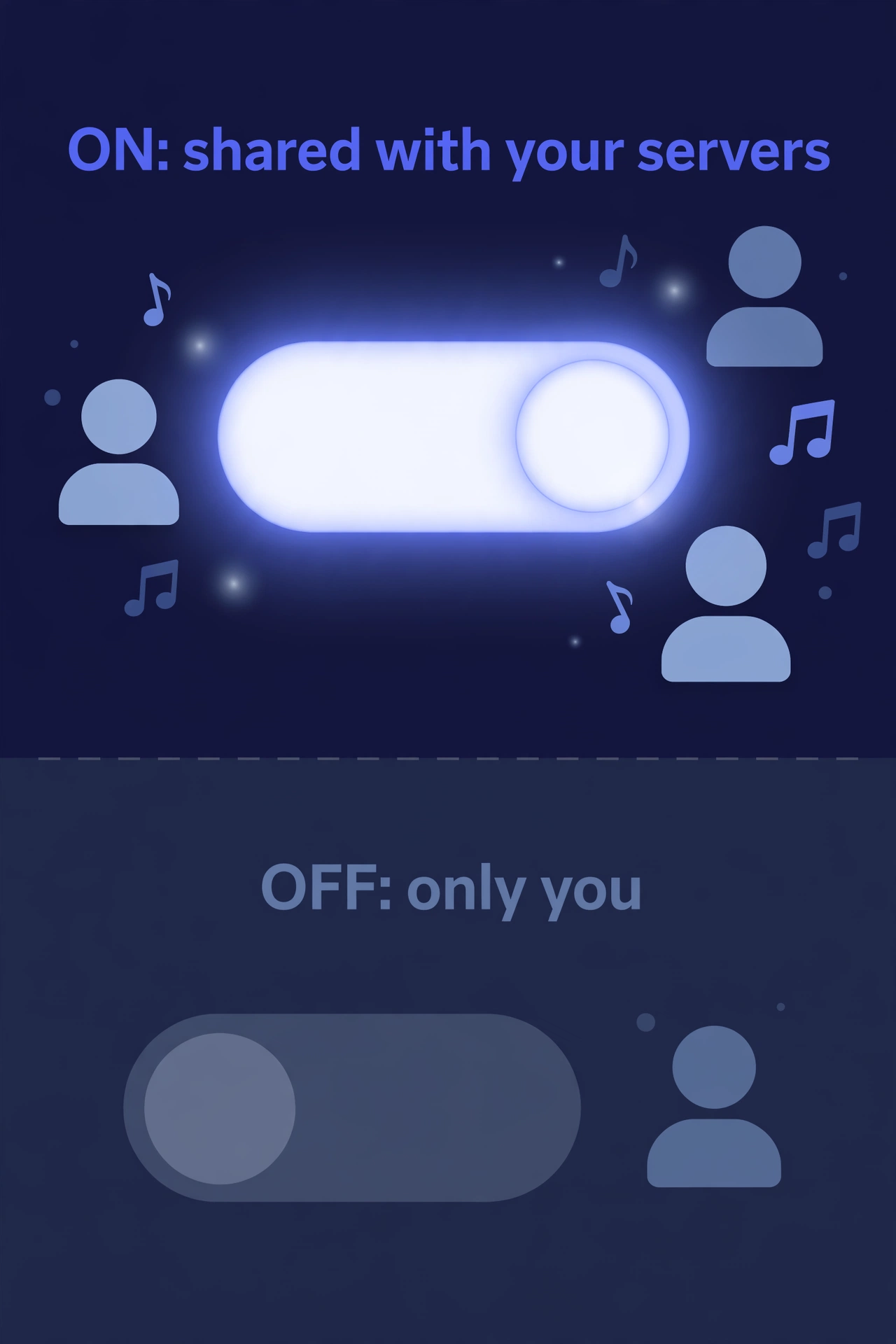
On your My Node page (or via /mynode settings) there's a share toggle. In plain language:
- ON (the default): while your PC is online, anyone in the servers you're in can play music through your node — even when you're not the one who hit play.
- OFF: only you can use your node.
10 The one policy to know
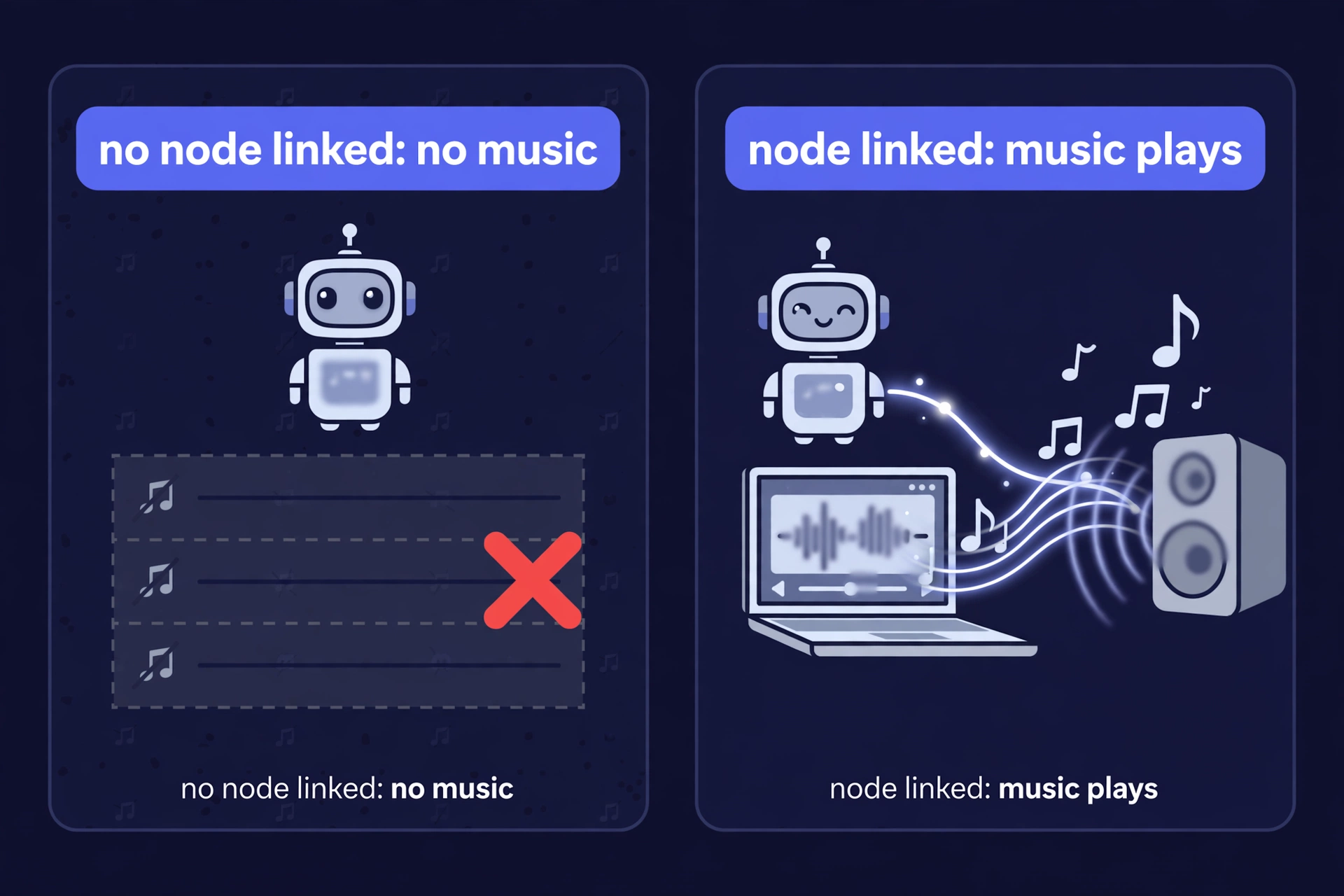
No music plays until someone in the server has a working node linked. That's the whole policy. The bot app never hosts audio itself — it only runs commands — so if nobody in the server has linked a node (or every linked PC is currently off), /play will tell you there's no audio available instead of playing silence.
This is also why FreeMium JayRain is free forever: nobody is paying for audio servers, so there's nothing to charge for. Link your node, share it, and the music takes care of itself. 🎶
/play with a song name or link. If it plays, your node is doing its job.🛠 Troubleshooting
"Couldn't reach it" / connection test failed — your node isn't running, the Host is wrong, or the port isn't reachable. If you're on home internet without port forwarding, use the tunnel option (step 8). Remember: localhost never works as the Host.
"Password was rejected" — the password you pasted doesn't match application.yml. Copy-paste it carefully, and make sure you kept the quotes around it in the file.
Music stops when I close my laptop — your PC fell asleep. See step 7: set sleep to Never while plugged in, and keep the lid open.
YouTube links won't play — the YouTube plugin jar is probably missing from the plugins folder. Check step 5's layout, then restart your node.
Spotify links won't play — same check for the LavaSrc jar. Also note Spotify tracks are matched to YouTube for actual playback, so you need both plugins.
Node shows offline on the dashboard — your PC is off/asleep, the terminal window got closed, or (tunnel users) your tunnel address changed after a restart. Start it up and re-link with the new address.
Change details later — just run /mynode again (or revisit the My Node page) and save the new values.